How to Add Social Media Links to Your Google Business Profile
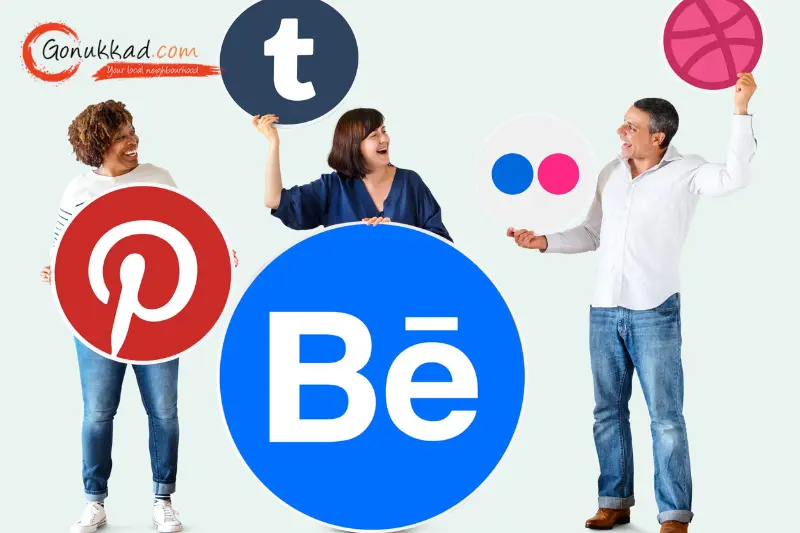
By adding social media links to your Google Business Profile, you're essentially inviting new customers to showcase your brand and attract new customers.
These days, customers expect to see your social media presence, such as Facebook, Instagram, or TikTok, right on your Google listing. It builds instant trust when they see you're real and active across platforms, not just some faceless storefront waiting to be found.
In this guide, we'll walk you through the exact steps to add social media links to Google Business Profile, such as Instagram, LinkedIn, X (Twitter), Facebook, and more.
If you're too busy to handle Google Business Profile social media integration, let the experts at Gonukkad Business Promotion Service take care of it for you. With their Google My Business optimization and local SEO services, your business will rank at the top of local search results for "near me" queries.
What Can You Link on Your Google Business Profile
Google now lets you connect social media profile links to your Google My Business Profile. You can add the given platform's link to your business listing:
- YouTube
- X (formerly Twitter)
- TikTok
When you add social media links to Google Business Profile, your latest posts and updates can show up right inside your business listing on Google Search and Maps. It's great for customer engagement and helps drive more clicks to your social channels.
Step-by-Step: How to Link Social Media to Google My Business Profile
Before you add social media links to Google Business Profile, make sure you have access to your business's Google account and have already claimed your Google Business Profile.
1. Log In and Find Your Profile
- Open Google and sign in with the Google account you used to set up your profile.
- Type your business name in the search bar or use the "Google Business Profile Manager" link.
2. Go to "Edit Profile"
- Click the Edit Profile button.
- On the desktop, it's easy to spot at the top of your profile in the search results.
- On mobile, you'll see it under your business listing after you log in.
3. Head to ‘Business Information' → 'Contact' → 'Social Profiles'
- Scroll through your editable business info until you hit the "Contact" section.
- Here you'll find the Social Profiles area.
- On mobile, you'll see it under your business listing after you log in.
4. Add Facebook, Instagram, and More
- Click the "Add social profile" or the "+" button.
- Select the platform (such as Facebook or Instagram) you want to add from the dropdown menu.
- Copy and paste the URL for your page. Be sure it matches the format Google accepts! For example:
5. Save and Confirm
- Click Save at the bottom of the page.
- Your changes should show up within a few minutes, but don't panic if it takes a bit longer; a few hours isn't uncommon.
6. Update or Remove Social Links
Want to update a link or remove a network? Just go back to the same spot and either change the URL or click the trash can/bin icon next to the profile you want to delete.
Why Add Social Media Links to Google Business Profile
Boosts Local Ranking: Completing business information with integrated social media links on your GMB helps you rank higher in local search results.
Builds Trust: Update Google Business Profile with social media links instantly builds trust, as it shows you're real and active across platforms, not just a faceless storefront waiting to be found.
Easy Engagement: When you add Facebook and Instagram to Google Business Profile, it is ideal for customer engagement as it helps drive more clicks to your social channels. With just one click, you can attract potential customers to your social media.
How Gonukkad Helps US Businesses to Add Social Media Links to Google Business Profile
Optimizing Google Business Profile social media integration isn't just about dropping links. To get ranked on local search results and double customer engagement, you need an optimized GMB profile.
That's where Gonukkad's GMB optimization SEO services come in to help US businesses:
- Optimize every part of your Google Business Profile, including smart social media linking.
- Keep your online info consistent across all platforms and directories.
- Improve your visibility in local search, so more customers find and trust you via Google.
- Analyze and manage reviews, Q&A, and local insights.
If you're looking to update your Google Business Profile with social media links in a way that's both effective and supercharged for local rankings, let Gonukkad handle the heavy lifting for you.
Final Word
Add social media links to your Google Business Profile today and let your brand's personality, trust, and engagement shine right in Google Search. If you want to be certain it's done right and maximize your local ranking, get in touch with Gonukkad.
Q. How long does it take for Google to show updated social media links?
A. It generally takes Google anywhere from 24 to 72 hours to display updated social media links on a Business Profile.
Q. What if my business has multiple locations?
A. You'll need to log in and update each profile separately, or use a tool that supports multi-location updates. Gonukkad offers solutions for bulk updates, ideal for managing multiple branches.
Q. Does adding Facebook and Instagram to Google Business help my ranking?
A. Completing business information with integrated social media links on your GMB helps you rank higher in local search results.
Q. Why do my links keep disappearing or not show up?
A. Make sure your links don't redirect, are public, and match Google's format rules.