ChatGPT
 Perplexity
 Claude
 Google AI
 Grok
Grok
Summarize this article with an AI assistant.
Google Business Profile Setup: Steps To Rank Higher!

Do you want to Boost Your Business's Online Presence? Then this is the right blog! Find the ideal method to finish your Google Business Profile Setup and draw in more customers with ease!
Introduction
With the age of the internet having fallen upon us, an online presence is no longer a luxury but a necessity. Properly optimized Google Business Profile Setup guarantees that your business is listed in search results, Google Maps, and local listings, making it easy for probable clients to locate you. If you’ve ever wondered how to create a business profile on Google or how to add my business address to Google Maps, this guide provides a detailed roadmap. Following are the steps to establish a good online presence and complete GBP Profile Verification.
Boost your local rankings! Get expert Google Business Profile optimization services to attract more customers and increase visibility. Book a free consultation today!
How To Create Business Profile on Google?: Step-by-step
Step 1: Log In to Google and Start the Setup
Start by visiting the Google Business Profile website. Log in using your Google account, or create one if you don't have an account. Click on "Manage now" to start the Google Business Profile Setup.
Google will request your business details. That's the first step when you are thinking about how to create business profile on Google! Enter your correct business name as it directly affects how others may find you on the internet.
Step 2: Choose the Right Business Category
Selecting the correct business category matters because it will determine how Google classifies and displays your business. Google provides pre-classified categories, so select one that best fits your products.
Assume you own a bakery; selecting "Blanket" instead of a baking term like "Food Business" will cause your profile to appear in relevant search results. A perfectly categorized listing increases the chances of you being discovered by the individuals who count.
Tip: Have a look at the competition's categories to decide what will be suitable for your company.
Step 3: Supply Your Business Location and Address
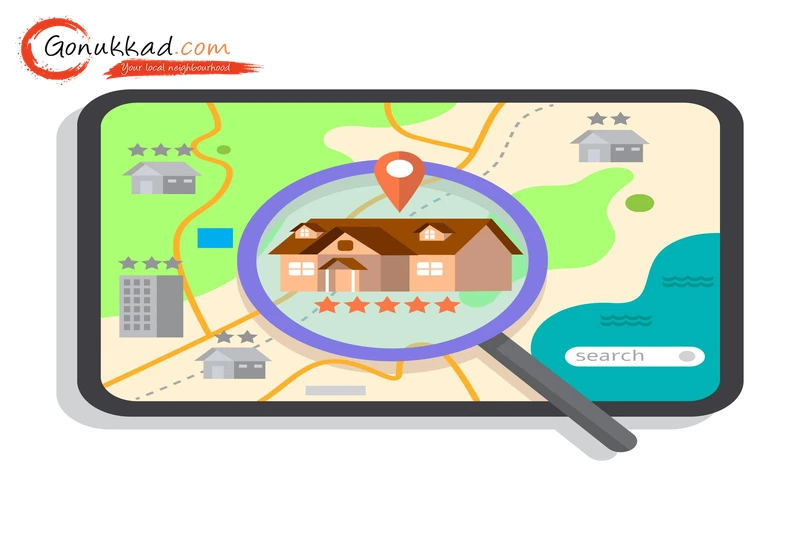
For physical establishments, putting in the correct address is the most critical. If you'd like to learn how to put my business location on Google Maps, you can simply do the following:
- Type your actual business address in the fields provided.
- Google will provide you with a map where you can place your pin for increased precision.
- If you visit customers, or service customers in their homes, select the option stating, "I deliver goods and services to my customers."
After you are done, your business will be on Google Maps, and customers will be able to find you easily by a simple search.
Warning: An incorrect address will confuse your customers and lost business opportunities. Double-check before proceeding!
Step 4: Add Contact Information and Website Information
Your Google My Business listing is one of your customers' touchpoints, so ensure that your contact details are current. Having a phone number and website allows potential customers to reach you directly. Online businesses receive more engagement and trust.
Pro Tip: Add a clickable contact button on your profile to increase requests
Step 5: Claim Your Google Business Profile
After your profile is live, you'll need to complete GBP Profile Verification. It assists in confirming your business exists and can't be modified by any other person.
Google provides a few options for verification:
- Postcard Verification:Google sends a verification code to the business mailing address you provide on your profile.
- Phone Verification:Some businesses can be verified via an auto-dial phone call.
- Email Verification: In others, Google sends an email verification link.
Tip: Verify as soon as possible so that your company appears on Google Maps as soon as possible. Don't miss this step!
Step 6: Maximize Your Business Profile Visibility
An optimized profile ensures maximum discoverability and attracts more visitors to Google Business Profile. Here's how to optimize your Google Business Profile Setup:
- Add High-Quality Photos & Videos:Businesses with photos receive 42% more direction requests and 35% more website traffic.
- Update Business Hours: Keep your hours current to avoid customer frustration.
- Engage with Customer Reviews: Answering reviews both good and bad, increases credibility and trust.
- Post Regular Updates: Post specials, news, and events to stay current and interact with your audience.
Warning: An inactive profile will damage your visibility. Post updates and respond to reviews to stay active.
Step 7: Leverage Other Google Features
Google offers more than a listing; it offers useful tools to strengthen your online presence. Check out these features:
- Google Posts:Share updates, offers, and announcements on your profile.
- Google Q&A:Respond to commonly asked customer questions to build credibility.
- Insights & Analytics:Monitor what your customers are doing with your profile and make data-based choices.
Pro Tip: If you do not have a website, use Google's free website builder. It works beautifully in conjunction with your profile and you can sell products online.
Step 8: Update Your Profile
A proper Google Business Profile Setup is not something that happens once. Regular updates put your company in the limelight and the know. During relocation, contact information, or business hours, make sure your Google business profile is updated to maintain your data in the right way.
Google also from time to time alters features and algorithms. Being aware of these advancements guarantees your profile is set up to appear as much as possible.
Pro Tip: Set up a monthly reminder to review your profile for correctness and updates.
Conclusion
Building your Google Business Profile is a business game-changer for your online reputation. Follow these steps and create a compelling online presence that attracts more customers and boosts engagement. If you need expert assistance with profile building, optimization, or verification, Gonukkad offers tailored solutions to propel your business. Let us handle the heavy lifting while you focus on growing your business—Contact Gonukkad today!
Q. When will I get verification for my Google Business Profile?
A. The GBP Profile Verification will take anywhere from a few days to two weeks depending on which verification method you select.
Q. Can I set up my Google Business Profile with no physical address?
A. Yes, you can opt to verify that you offer services instead of filling in a fixed address.
Q. How do I update my Google Business Profile once it has been established?
A. You are free to go back to your profile and update items such as opening times, address, and contact information.
Q. Why isn't my business appearing on Google Maps?
A. Your profile may take a bit longer to reflect, or you may not have completed GBP Profile Verification. Double-check your information for correctness.
Q. Is it possible to list multiple places in my Google Business Profile?
A. Yes, listing multiple locations of a business with branches separately under the same account is possible to increase local visibility.
Supercharge your online Business:
Go from surviving to thriving!
Amplify sales with our expert account management. Unleash your true potential now!
Call Us